1. Pick the person or describe a character
Choose Image to Video for your own portrait, or Text to Video for a character created from your description. Decide whether the final shot needs a close portrait or enough room to show a full costume.


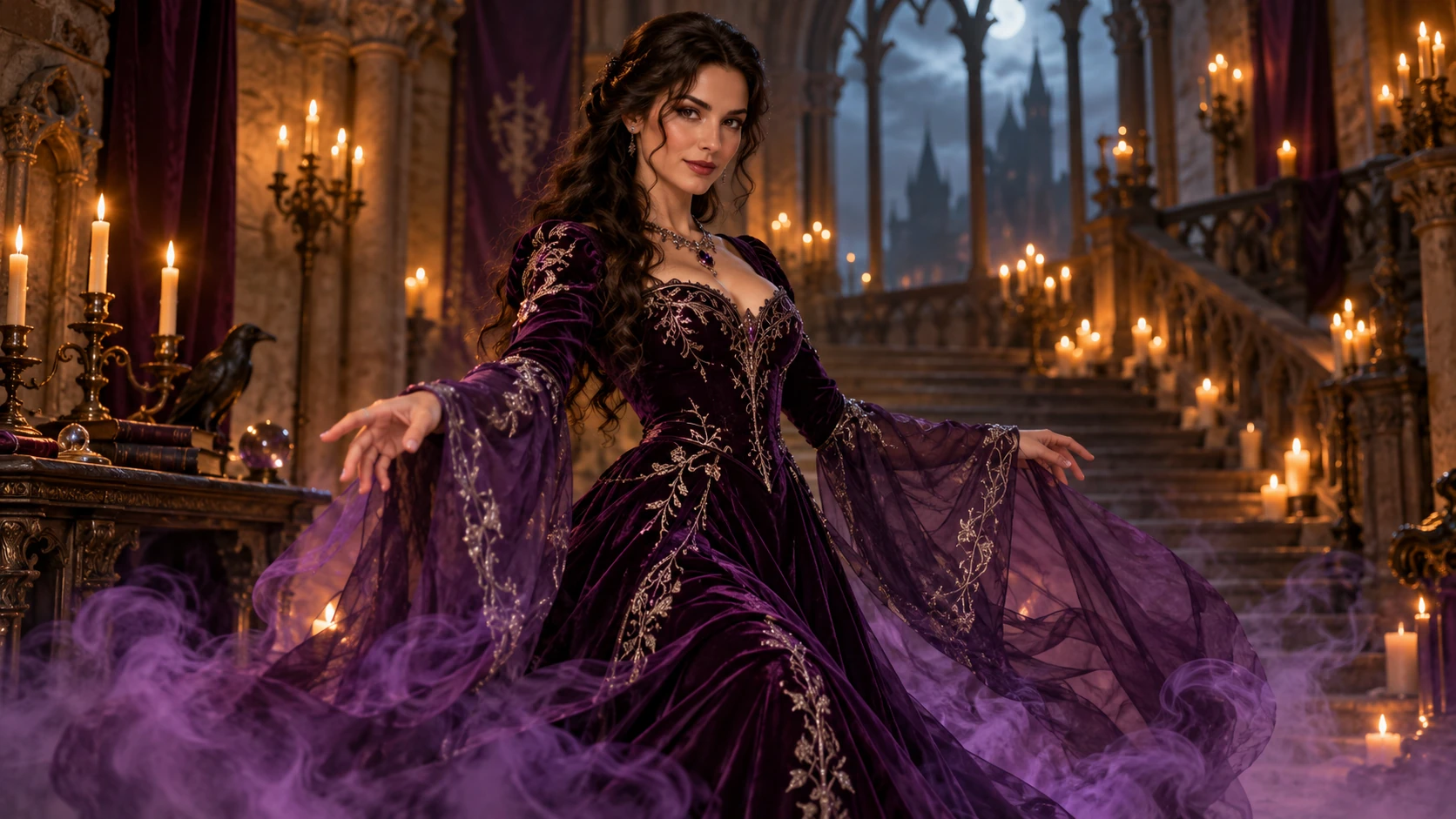
An ordinary opening. A memorable costume reveal.
Look for a readable opening, a short transition and a clear final outfit. Use the reference to decide how much time each beat needs, then write the costume and transition in your own words.
Loading history…
Make a Halloween video that moves from everyday clothes to the costume you describe. Choose Text to Video to create a new character, or Image to Video to start with your own portrait. Plan the opening look, the transition and the final reveal before you generate.
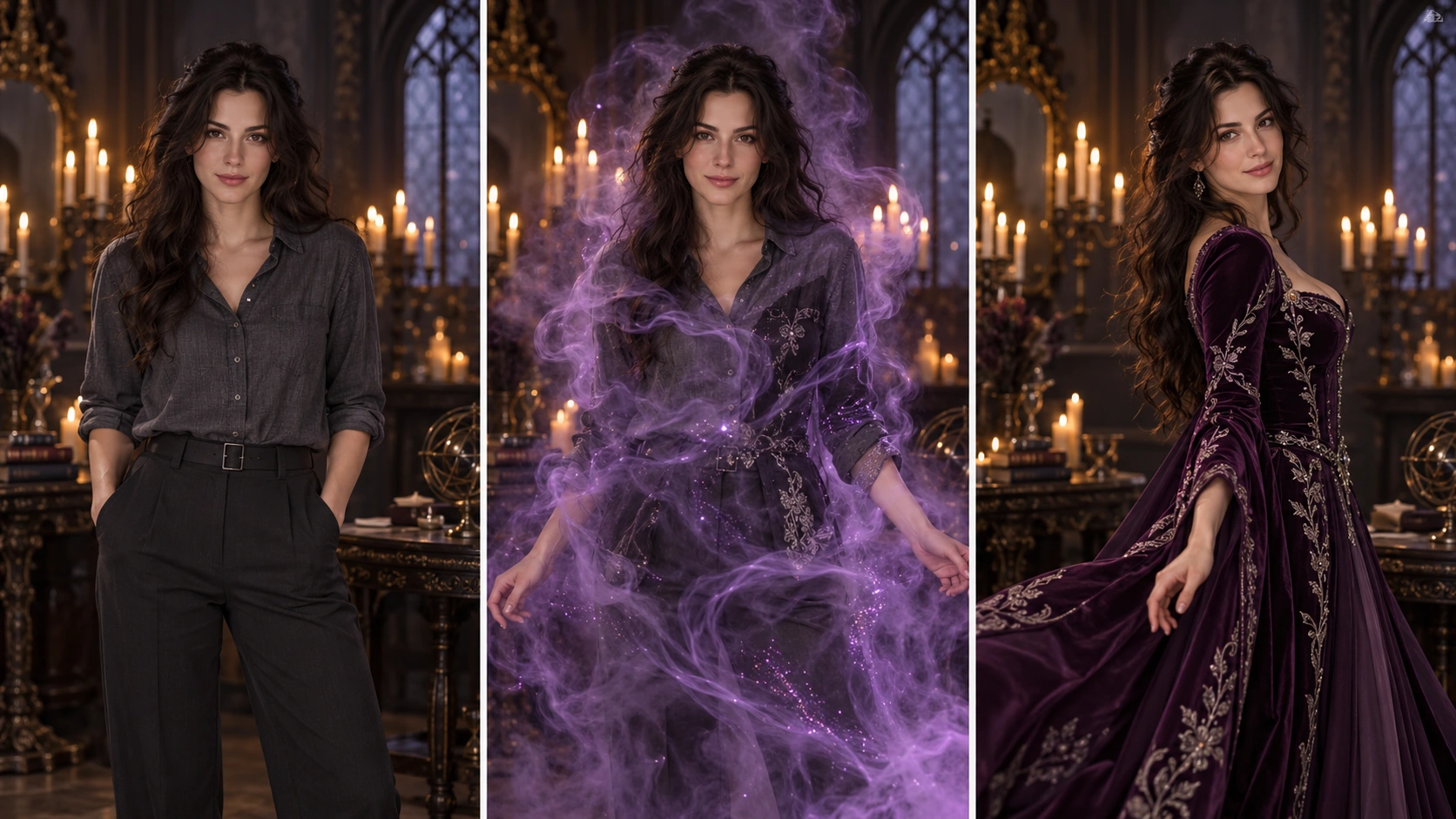
Choose Image to Video for your own portrait, or Text to Video for a character created from your description. Decide whether the final shot needs a close portrait or enough room to show a full costume.
Specify the everyday outfit first, then name one finished costume with a few visible details: fabric, color, headwear or silhouette. Keep the face and setting consistent so attention stays on the wardrobe change.
Try a small turn, a sweep of mist or a brief light change. Describe when the costume is revealed and ask for a moment to see the final look. Several competing effects can distract from the outfit.
Choose the supported video settings, confirm the displayed credits and generate. In History, watch the face, hands, clothing edges and final pose. Adjust the weakest part before making another version.
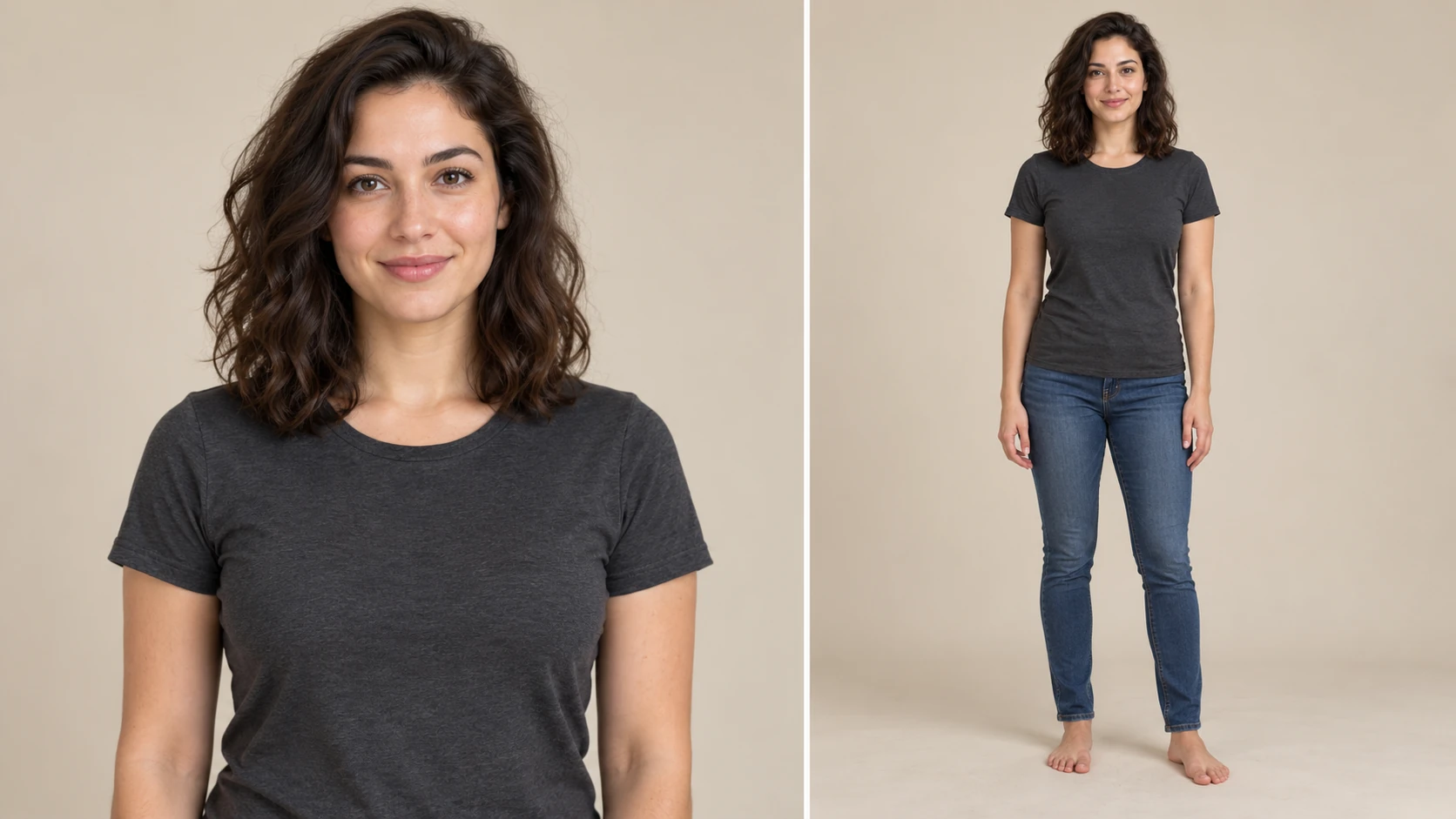
For Image to Video, start with a clear adult portrait or half-body photo taken in even light. Keep the face and shoulders visible, and leave room for the costume shape you want. A full-body outfit needs more of the body in the starting image than a close-up makeup or headwear reveal.
If your selected model offers Start/End Frame Mode, upload two images: the opening frame first and the final frame second. Use it to guide the beginning and ending of a shot. For a single-photo animation, stay in Image to Video; Text to Video uses no uploaded media.
A strong reveal lets the viewer recognize the final look immediately. Pick a small group of details that belong together, such as a velvet cape, structured collar and silver embroidery. Keep the transition brief enough that the finished costume remains on screen long enough to appreciate.
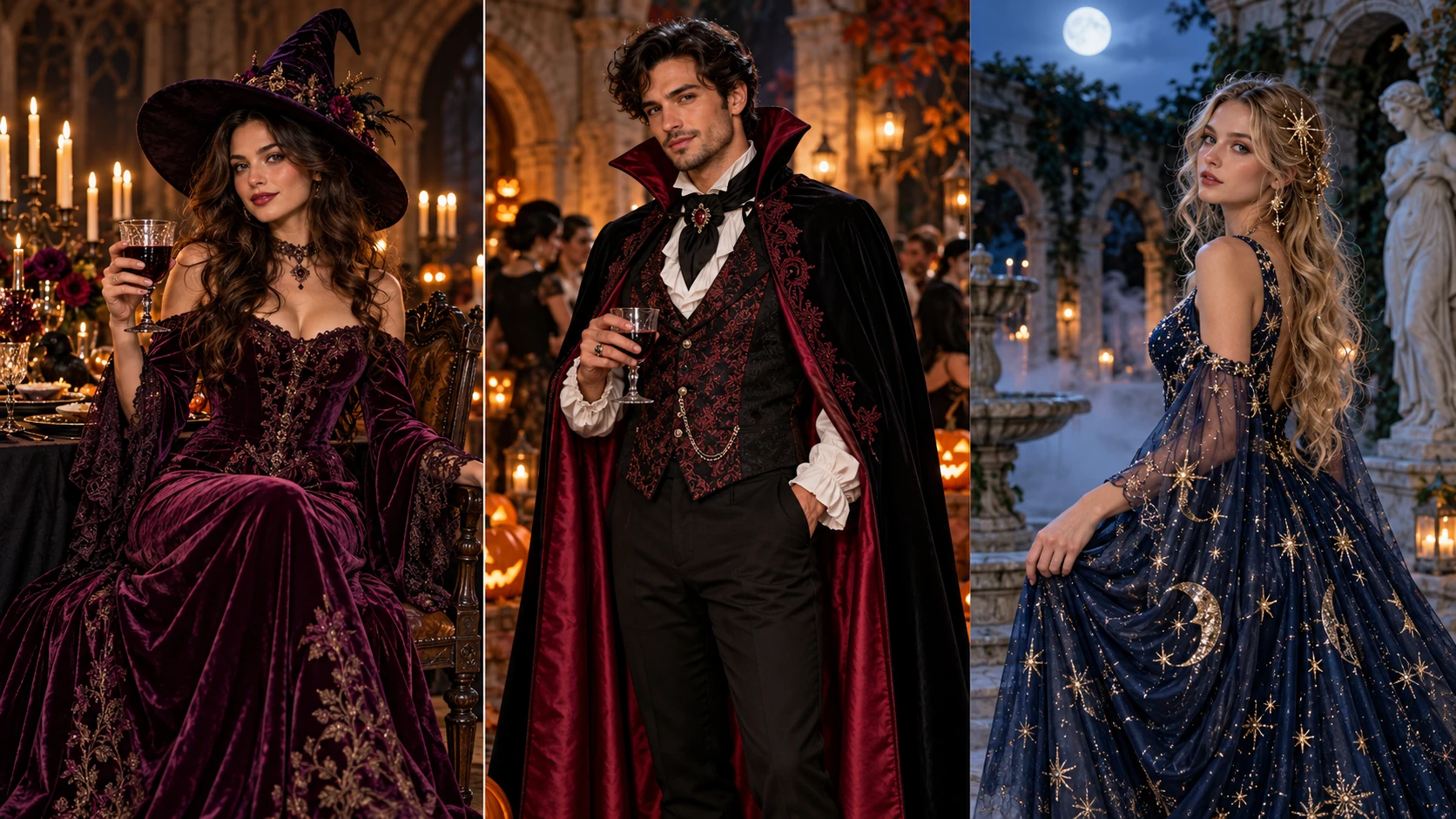
Use dark tailored clothing and soft candle-style light for a restrained, elegant reveal.
Choose warm orange accents and a playful final pose, then add your invitation text in your edit.
Set one clear costume against a simple night scene rather than introducing several competing characters.
Preparing your prompt and exploring the guide does not spend generation credits. Sign in to see your current balance and whether your account includes any free or earned credits. The generator shows the credits required before you start a video job.
Use the live quote for the selected model and supported settings. Duration and resolution can change the total. Review the quote again after adjusting options, and compare current credit packages on Pricing if you need a larger balance.
Allow around three minutes as a starting estimate for this video workflow. The task in History shows its own estimated wait and current status. Queue conditions and settings can extend processing time; follow that task instead of submitting the same job again.
It is a generated video in which a character changes from an opening look into the Halloween outfit you describe. You control the costume, setting and transition through the prompt, with an optional starting photo.
Preparing the prompt and exploring this guide does not start a paid job. Generation uses the live credit quote. Sign in to see your available balance, including any free or earned credits offered to your account; Pricing lists current purchase options.
Only when you choose Image to Video. Upload one clear adult portrait, half-body or full-body photo that suits the final framing. Text to Video creates the character from your description and requires no reference image.
The required credits depend on the model and supported video settings you choose. The generator calculates the current quote before submission. Review it again after changing duration or resolution.
Use around three minutes as an initial guide, then check the estimate on the task in History. Busy queues, video settings and model availability can extend the wait; the task status is the place to follow progress.
Use a sharp starting portrait, keep the camera distance consistent and ask to preserve the face while changing the outfit. Review the transition frame by frame where possible, then simplify the effect if the face changes too much.
For a first version, choose one before-and-after transformation. A single destination makes the reveal easier to follow and gives the costume details more screen time. Create separate takes when you want to compare outfits.
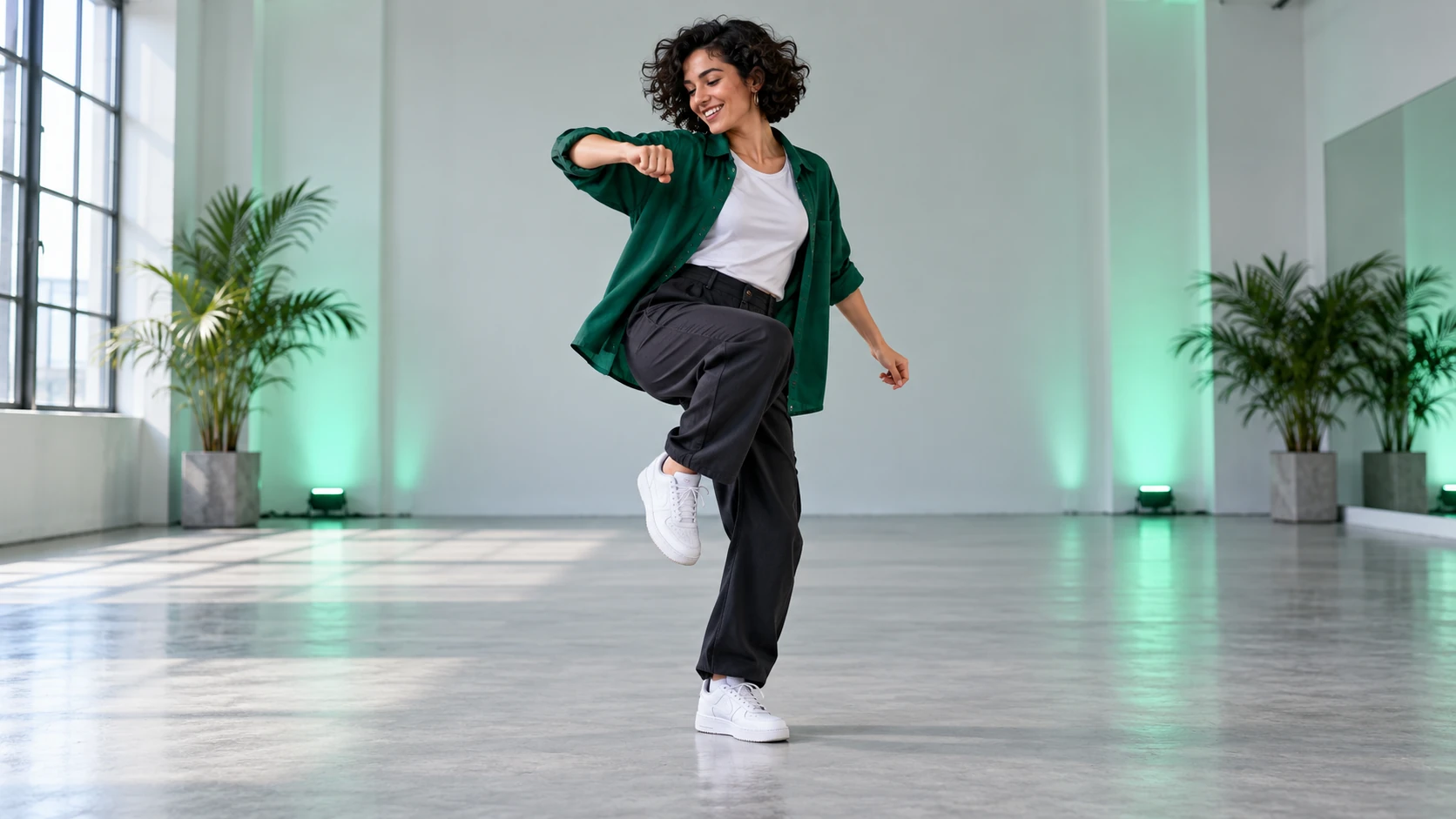
Guide a performer through a compact dance sequence.
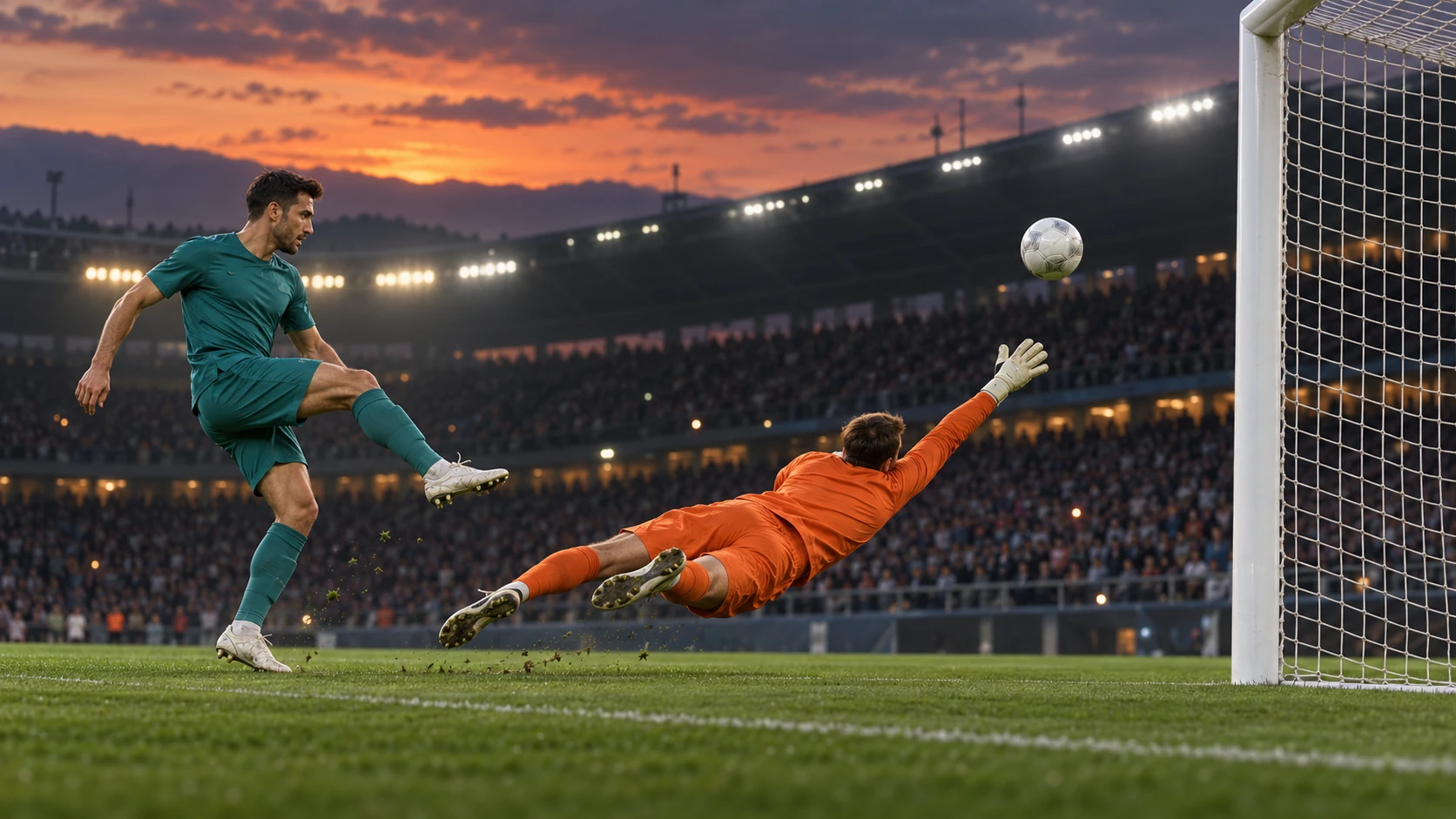
Direct the approach, lifted touch and ball path.
Choose another video workflow for your next scene.
Review current credit packages before starting another take.
aigenjutsu.com · Updated